Guide · 4 steps
Read your pace
Instead of a budget you have to keep up, Ember compares this month with what you’d normally have spent by the same day. That’s your pace.
Step 1: Read the headline on Home
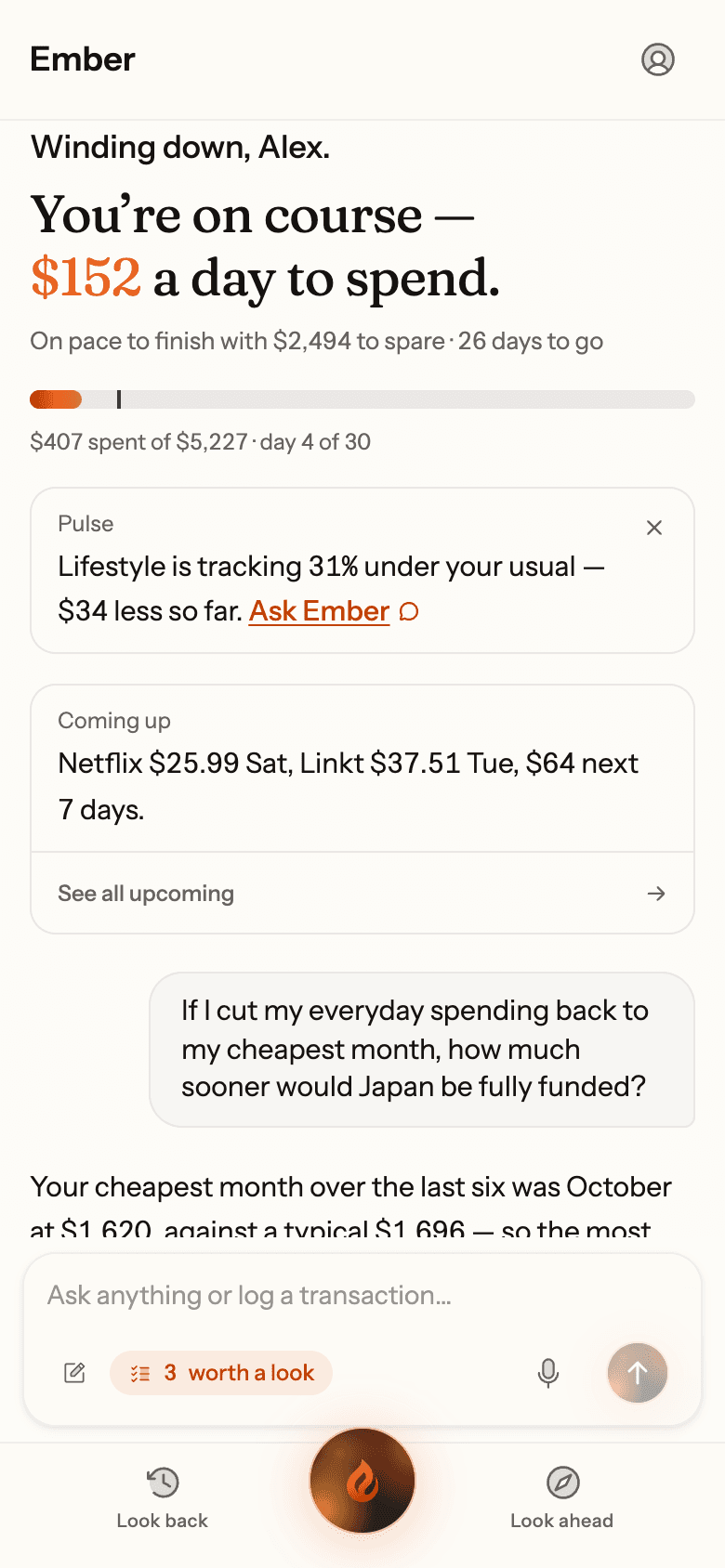
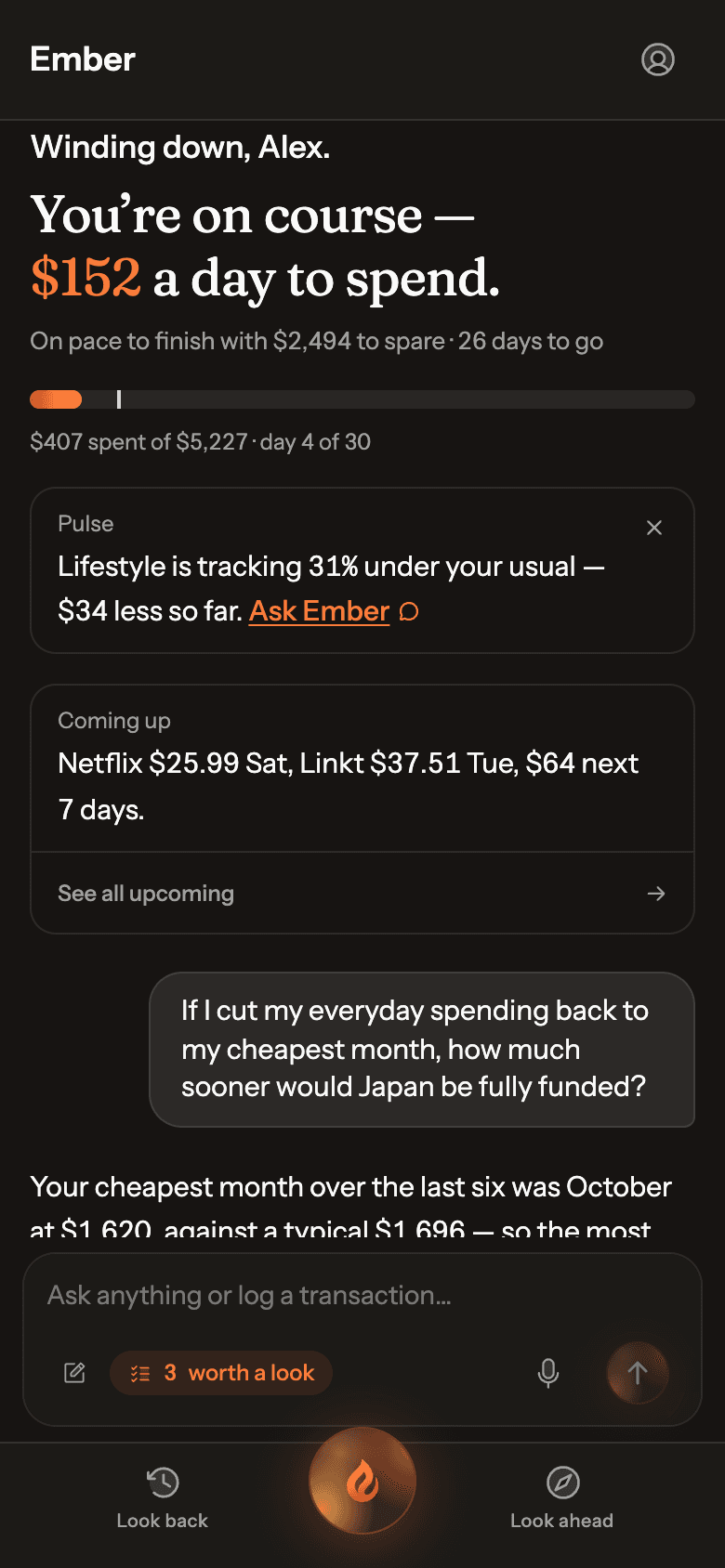
Home tells you where you stand, for example “You’re spending right around your usual” or “You’re $240 under your usual”. With a Copilot plan it becomes a daily figure: “You’re on course — $152 a day to spend.”
In the bar underneath, the fill is what you’ve spent and the tick shows how far through the month you are.
Real Ember screen · sample household Step 2: See where the money went
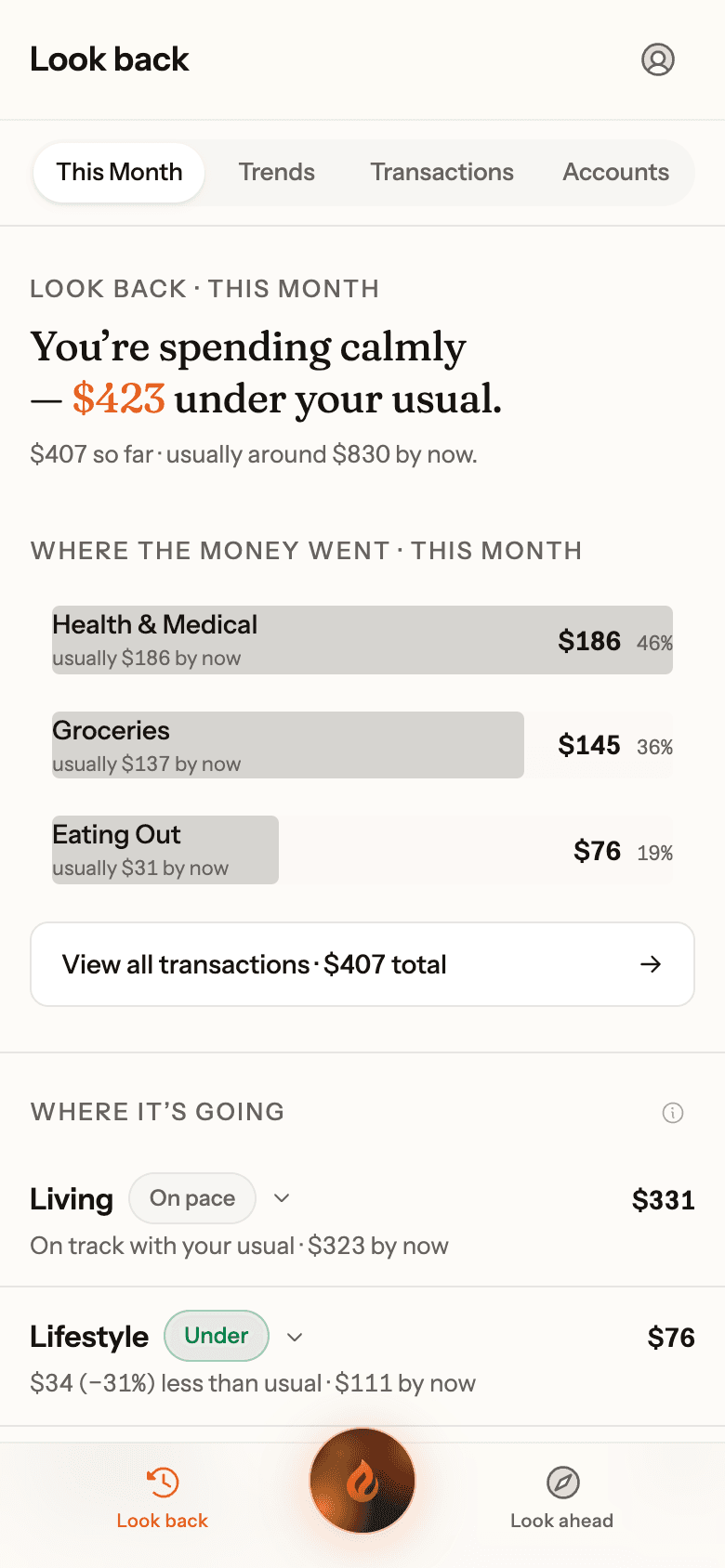
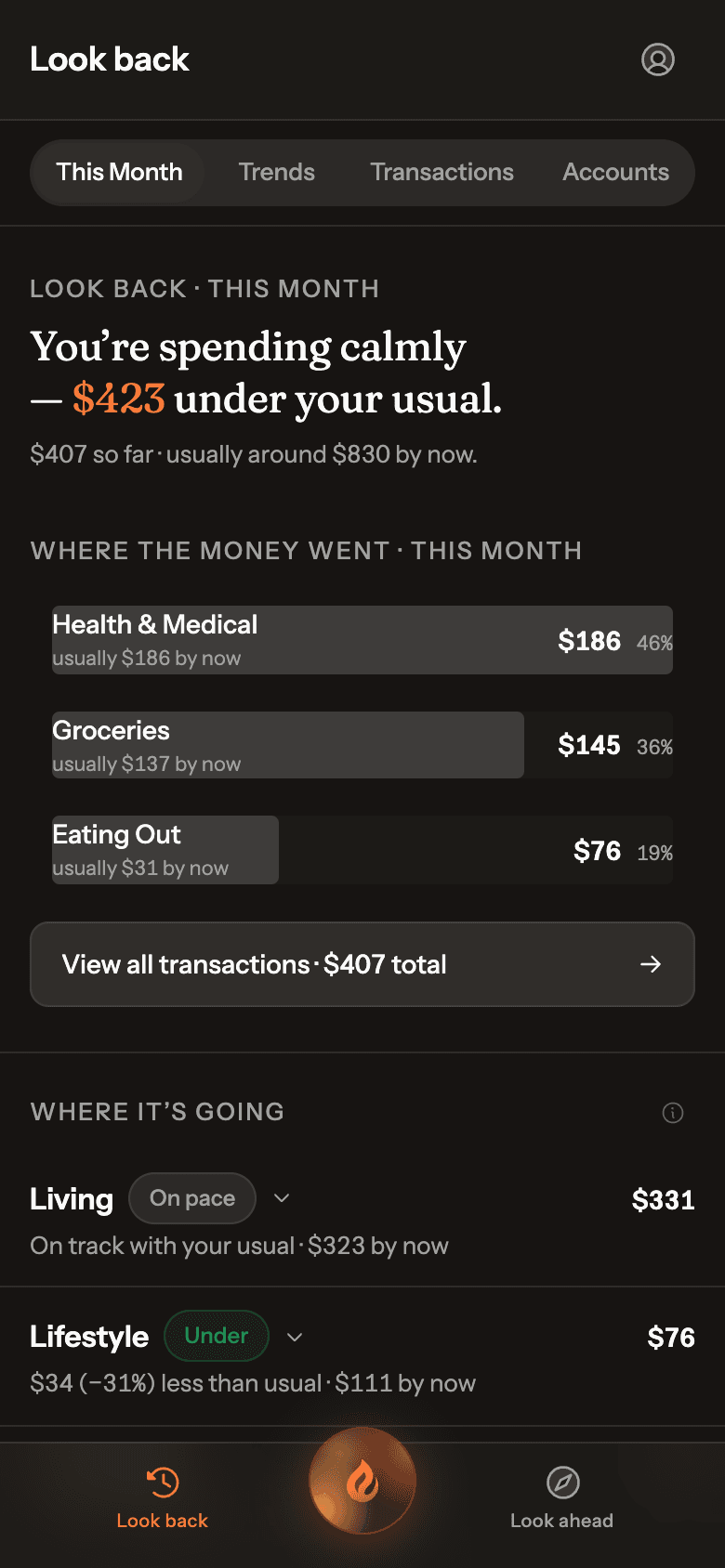
Look back › This Month breaks the month down by category, each beside what’s usual by now, plus your top merchants.
Real Ember screen · sample household Step 3: Keep lumpy costs from skewing it
A one-off purchase can make a normal month look high. Open it, tap Manage, and under How should this count? choose One-off. It still counts in your totals, it just isn’t compared to your usual.
For costs that land now and then, like school fees or car rego, add the merchant or category in Settings › Kept out of your usual.
Step 4: Look at the longer trend
Look back › Trends shows money in, money out and what you saved, month by month.
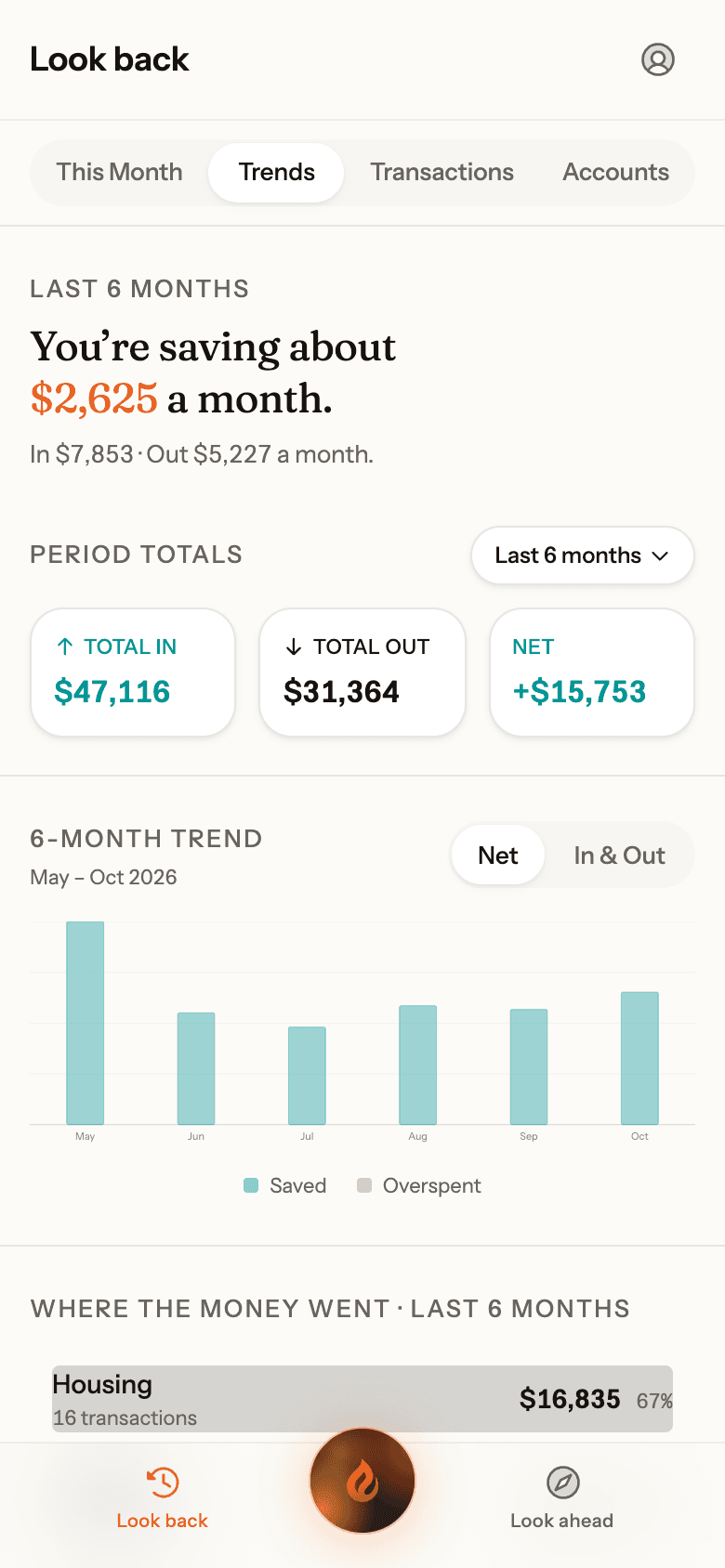
Real Ember screen · sample household