Guide · 5 steps
Import your bank exports
Ember works from the CSV files your internet banking lets you download. For your first import, get 12 months from every account, credit cards too. It takes about ten minutes and is easiest on a computer.
Step 1: Export a CSV from each account
- Log in to your bank’s website on a computer. Most banking apps can’t export.
- Open an account and look for Export, Download or Statements.
- Choose CSV and the last 12 months.
- Repeat for every account, including credit cards.
If your bank limits the date range, export it in two goes. Overlaps are fine: Ember skips anything it has already seen.
Step 2: Drop them all into Ember
Open Import your files: on Look back › Transactions, tap the round + button, then CSV. You can also get there from Settings › Getting data in › Upload bank export files.
Drop every file at once, or tap to choose them. Ember reads them on your device first. Nothing is saved until you import.
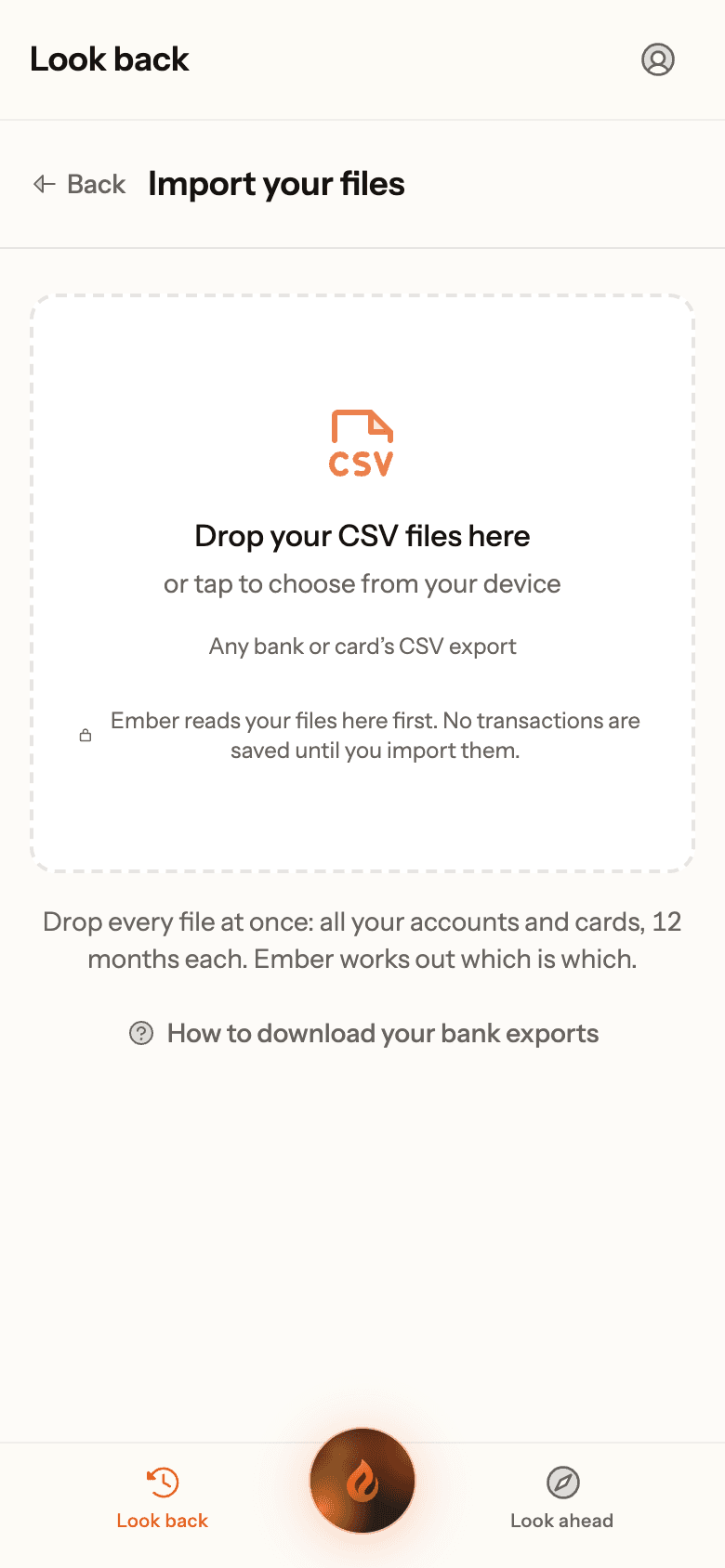
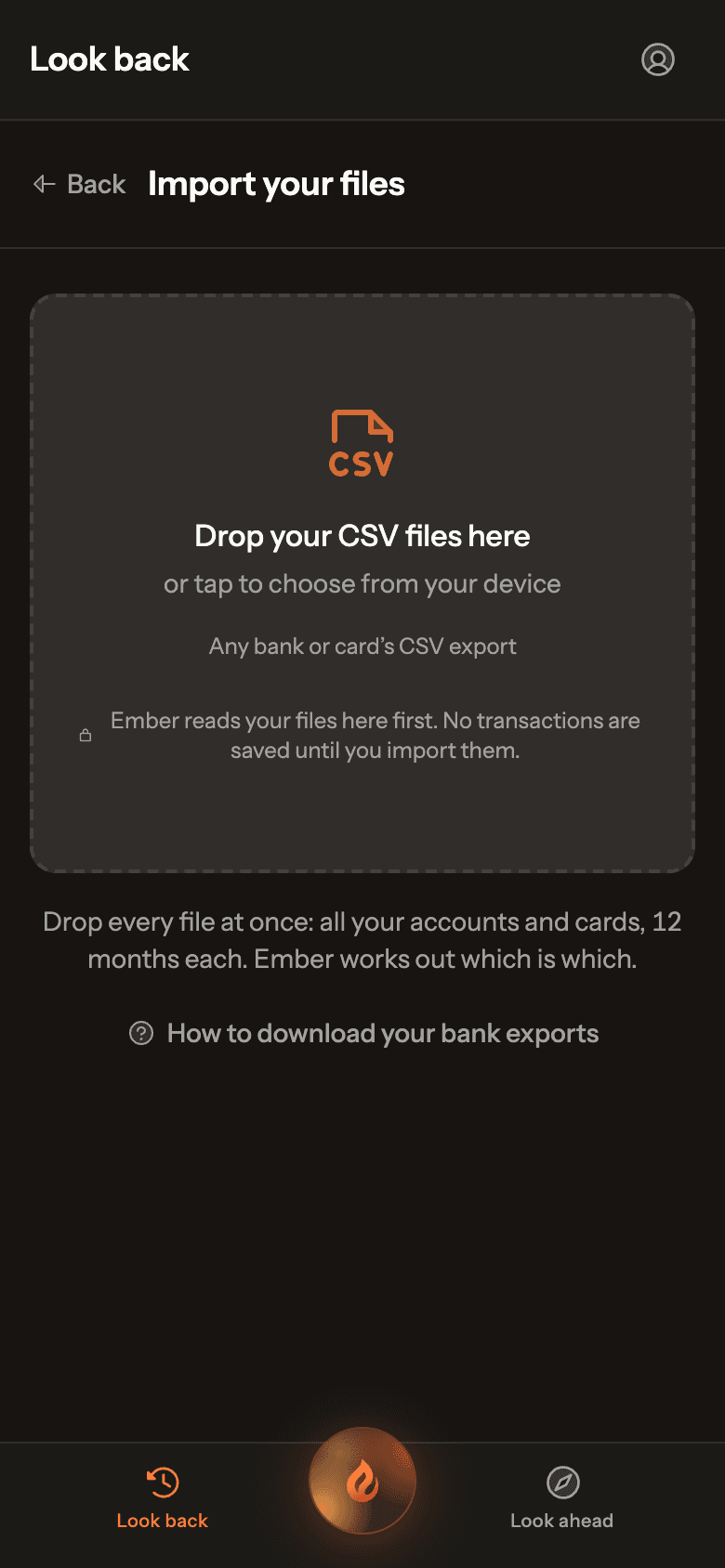
Real Ember screen · sample household Step 3: Check the accounts Ember found
You’ll see one card per account. Ember works out which file belongs to which account, and guesses a name for any new one.
- Change a new account’s name if you like, and check its type: Everyday, Savings, Offset or Credit card.
- Use Goes into if a file belongs to an account Ember already has.
- Tap Remove from this import to leave a file out.
Step 4: Import
Tap Import N transactions and keep the page open while Ember sorts them. Anything already in Ember is skipped, and the done screen tells you how many.
Step 5: Answer a few quick questions
After your first import, Ember shows the regular payments it found, then asks about anything it couldn’t place (“Who is…?”). Each answer applies to every past and future payment from that merchant. You can Skip to Home at any point.